
Independent editorial guidance on compatibility, device settings, safety, and responsible use.
What a Downloader code can tell you about a TV app
Independent editorial guidance on compatibility, device settings, safety, and responsible use.
“Código Downloader do Filmyzilla para TV Box e Fire TV Oficial” is a search phrase that treats a code as proof of an official distribution route. A numeric shortcut can be convenient for typing on a remote. It supplies very little information about whose material you will receive. Check whether the publisher and platform relationship can be established independently. You can evaluate that claim and find an authorised app without entering an unfamiliar code.
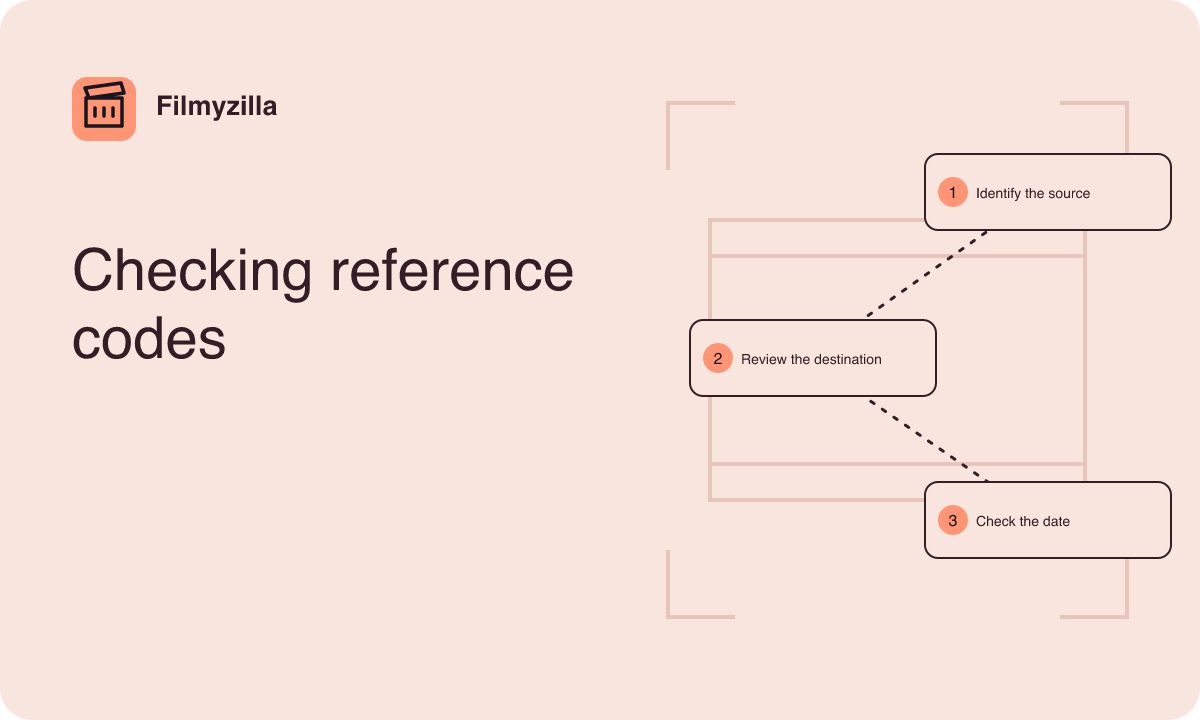
Understand what is being shortened
A shortcut is a reference created for convenience. The digits themselves do not describe the destination, its owner or the type of file it might present. Even if a second guide repeats the same digits, it may simply have copied the first guide. A photograph of a television showing a result also leaves the relationship between the person posting the number and the developer unanswered.
When you see a code in a video description or a message, check what the original source actually says about the app. Does it clearly identify a developer you can corroborate? Is the platform named as supported by that developer? Keep these questions separate from whether the instructions are easy to follow. A well edited video can demonstrate a series of taps while leaving all the important information about distribution out of frame.
Check the hardware and the store separately
Fire TV and Android TV boxes can present similar rows of apps. Their support information and stores may differ. Identify the device running the menu by checking its model and software in Settings. If the television is only showing a connected box or stick, the television brand on the frame tells you little about where that box gets its apps.
Search the store on the specific device for the provider you want. Compare the publisher on that listing with the information you independently verified. Use a listing and its normal installation procedure if it covers the device. If you cannot find it, check the verified provider's documentation for device and regional support. Absence from a store is information you can use in reaching a decision. A code appearing under a search result does not establish that a compatible edition exists.
Ask what an official distribution claim would need
- Identify the publisher from a source you already associate with the service. Check whether it acknowledges the app and specifically describes distribution for the target device.
- Look for a link between that documented route and the claimed method. A generic statement that the platform runs apps is too broad.
- Check whether the guidance describes how updates will reach the installed app. A file you can obtain today can still leave you without a reliable update route tomorrow.
- Review what the verified source says about support, requirements and permissions. Compare that with the actions the published setup guide asks you to take.
If the evidence stops at a screenshot of a code entry field, leave the claim unresolved. The software used to enter a shortcut and the material the shortcut refers to have separate publishers. Verifying one does not verify the other. The name of a legitimate utility can be used in a guide that points to unrelated content.
Recognise changes during a download attempt
Perhaps someone in your household has already entered a number and is looking at a prompt. First identify what is on screen. It may be a web page, a request to save something, or an installation confirmation. Exit using the device's standard navigation if you do not recognise the source or the operation. Leave device protections enabled. A prompt asking you to expand the device's ability to install apps calls for a fresh check of the source.
If the household has already accepted a file, distinguish saving it from installing it. Use the device's ordinary file or app settings where available to review what is present. Look at installed app information and note any unexplained new entries before deciding what to remove. If other people use the device, check which items belong to their normal viewing setup. Do not follow a second shortcut advertised as a cleanup tool.
Choose an authorised way to watch with the remote
Search for the title with its year using an authorised provider you can confirm on the device. For example, a household wanting to play a Hindi dub on a Fire TV might start by finding a verified store app with the title, then check the spoken track and subtitles in the player. A TV box in another room might offer a different store and a different set of available services. Review each device on its own.
If entering text is the problem that attracted you to codes, use search terms that are short and distinctive. Search by part of the film's title and use the year and credits to confirm the result. A supported watchlist can help if you want to find the title again later. Test the remote's Back and Home controls so someone can leave the search screen without approving an unfamiliar request.
Give useful details if a guide caused confusion
If you need support, describe the model, the app that displayed the prompt and what the screen asked you to do. Record whether you only opened the screen, saved something or confirmed an install. Leave out household details or account information from screenshots, and use a verified channel for the platform or the developer whose app you can identify. When asking about compatibility, name the supported feature you are trying to use, such as television playback with a remote.
For example, a question might explain that a guide promised a television edition, but the store search shows no listing for the model. That is a useful request for confirmation. Bringing an unexplained code alone asks the recipient to deduce the provider and the device. Keep a local note of the source that answered and when you checked it. If someone sends a different code later, apply the same source checks before accepting any new claim.
Families can agree on a simple rule for unfamiliar prompts. Ask the person who manages the television before confirming an operation that adds software. Leave the screen using the remote's ordinary controls if that person is unavailable. The viewing plan can wait while you check.